“Cool features, but I do not like the terms of the subscription. I would much rather have an option to pay for it outright.”
— Jake F Jay
“App doesn't allow you to zoom to take the after photo. Also can't take two existing photos and align them.”
— CS1039
“If you use a before photo that was taken with the native camera app, when you select the selfie camera in this app, the live image is mirrored.”
— D rog
Inside PhotoAlign
How PhotoAlign keeps your shots perfectly matched
Video Editor with Before & After Clips
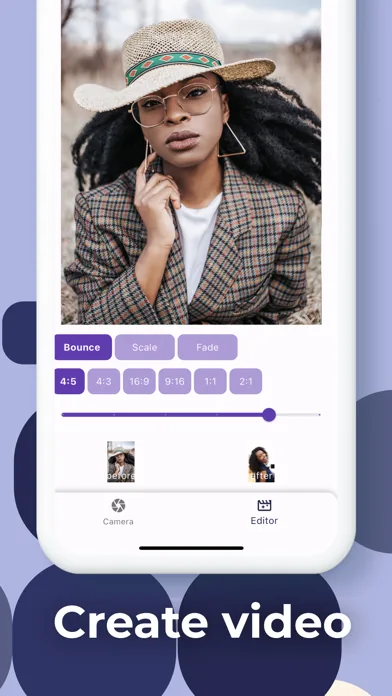
Cut a polished transformation video without leaving the app. Choose from Bounce, Scale, or Fade animations, pick your aspect ratio — 4:5 for Instagram, 9:16 for TikTok, and more — then scrub through your before and after clips side by side before you export.
Live Overlay Alignment in the Viewfinder
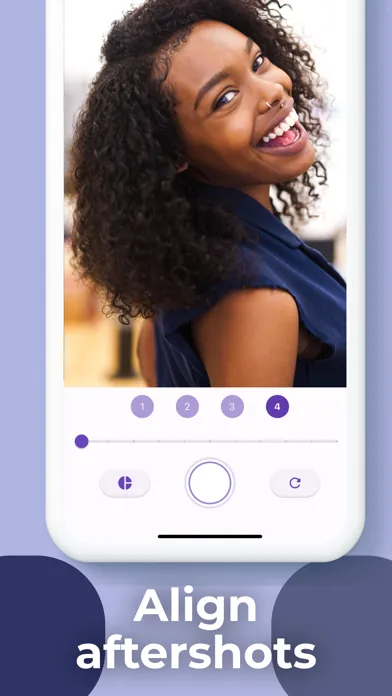
See your original before photo ghosted right over the live camera feed. Dial the opacity slider to find the sweet spot, toggle the half-circle overlay on or off, and tap the shutter only when every edge lines up — so your after shot matches the before precisely.
Locate Wall Features Before You Drill
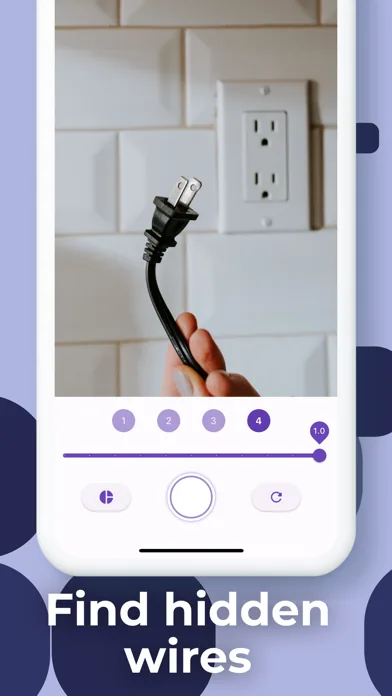
Load a before photo of any wall into the viewfinder and hold your phone up to the same spot. The overlay shows exactly where outlets, fixtures, and other wall details were in the original shot, giving you a clear reference point before you pick up a drill bit.
Built for Your Projects
PhotoAlign is built for every stage of your renovation
01·For
Home renovation DIYers making TikTok & Instagram Reels
You took the before shot three weeks ago and now you can't remember where you stood. PhotoAlign puts that original photo directly in your camera viewfinder so you can match the angle exactly — meaning your reel won't have that jarring horizon-line shift that makes the transformation look amateurish.
02·For
Interior designers building client portfolio content
Every portfolio piece lives or dies on the quality of the comparison. With PhotoAlign's live overlay, you can return to a finished room weeks after the original shoot, line up the same framing down to the inch, and export a side-by-side that makes the transformation impossible to ignore.
03·For
Home improvement contractors documenting client jobs
Client reports and invoices hit harder when the before and after photos are pixel-accurate. PhotoAlign lets you match your original site photo in the viewfinder before snapping the completion shot, so every comparison image you hand to a client looks deliberate and professional.
04·For
Landscapers documenting garden transformations across seasons
A lawn or patio shoot in spring looks nothing like autumn — different light, different growth. PhotoAlign's opacity overlay helps you return to the same camera position month after month, so your seasonal comparison shots stay anchored to the same perspective your client first approved.
05·For
Property flippers updating investors with progress photos
Investors want to see the gut-renovation progressing. PhotoAlign keeps each progress shot anchored to your original baseline photo, so your update deck shows a clean, consistent visual record from demo day through final finishes — no mismatched angles undermining your credibility.
Before You Download
Common questions from home improvers like you
How does the live overlay alignment actually work?
When you open a project in PhotoAlign, your before photo is displayed as a semi-transparent ghost over the live camera feed. You adjust the opacity slider until you can see both the live scene and the original clearly, then physically move your phone until the edges, lines, and focal points in both images match up. Only then do you tap the shutter.
Can I use photos I already took, or do I have to start fresh?
Based on current user feedback, aligning two existing photos from your camera roll is not yet supported — you need to capture the 'after' shot directly through the app's aligned camera view. The before photo can be any image on your device; the after must be captured in-app.
What aspect ratios does the video editor support?
The editor supports 4:5, 4:3, 16:9, 9:16, 1:1, and 2:1 — covering Instagram feed posts, TikTok and Reels vertical video, YouTube widescreen, and standard landscape formats. You can switch between ratios before exporting.
What animation styles are available for the transformation video?
The video editor offers three transition styles: Bounce, Scale, and Fade. You can preview each one in the editor before committing, and combine them with your chosen aspect ratio to tailor the output for the platform you're posting to.
Does the app work for outdoor shoots where the light changes between visits?
Yes — the overlay is purely positional, helping you match your camera angle and framing. Lighting differences between visits are up to you to manage on-site. For outdoor shoots, try to revisit at the same time of day to keep color tones consistent between your before and after shots.
Can I zoom in when taking the after photo?
Current user reviews note that zoom is not available when capturing the after shot inside the app. If matching a before photo taken with digital zoom, you may need to step closer physically to approximate the same framing instead.
Where are my photos stored — on-device or in the cloud?
PhotoAlign stores aligned images locally on your device. You can export finished images and videos directly to your camera roll, or share them via messaging apps and social platforms. No cloud upload is required, so your project photos stay on your phone unless you choose to share them.
Is there a one-time purchase option, or is it subscription only?
As of current reviews, the app uses a subscription model. Some users have expressed a preference for a one-time purchase option. Check the App Store listing for the latest pricing details, as plans may have been updated since those reviews were written.
Stop Guessing. Start Aligning.
Download PhotoAlign and take your next after shot with your before photo right there in the viewfinder — so your renovation, portfolio, or client report looks exactly as precise as the work you put in.